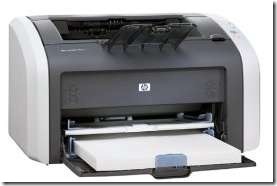
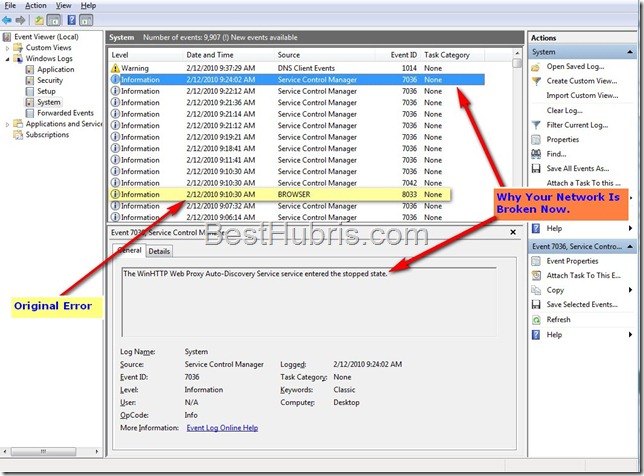
Unsupported Personality Error HP LaserJet 1012 Windows 7

We are going to call this inverted post style. This article started out down below where the heading HP LaserJet 1012 Printer Driver for Windows 7 Failure, but after writing all of that, I realized that I had taken too long to get to the point. That’s fine, because this is my brain storming, brain dumping, brain overloading, website and I needed to do a little of all three in order to be able to write the meat of this post. So, if you want it to completely make sense go to the heading and read to the end and then come back to the next paragraph. If you just want to know what is going on, just keep reading normally.

Using a different HP printer driver to fix the flawed business strategy of not supporting Windows 7 on popular, recently discontinued printers, has been tougher than it should be. As it turns out, there are two major reasons for this, as I recently found out about on a open-source forum dedicated to Linux printing.

The HP LaserJet 1012 printer worked pretty good for most people, but it was falsely advertised as supporting PCL5. Instead, the HP LaserJet 1012 printer actually supports some HP-bastardized version of PCL5. When the 1012 receives PCL5 print jobs it understands most of the commands it receives. Therefore, it is able to handle print jobs correctly that come from another PCL5 printer driver, like the HP LaserJet 3055 print driver for Windows 7.

Unfortunately, this unprofessional, hacked version of PCL 5 does not understand all of the PCL 5 commands it gets, so it just throws those into an error state. Eventually, all of the discarded commands fill up the printer’s buffers and it begins to generate visible error messages in the form of a printout that says only, “Unsupported Personality: PCL”.

Turning the printer off and back on resets clears the buffers out, and the LaserJet 1012 works on Windows 7 again until there is another buffer overrun.

Unfortunately, since it is the printer’s buffers and not the computer’s printing buffers that are overflowing, occasionally restarting the spooler service or other printer services does NOT fix the error of the LaserJet 1012 eventually crapping out with a PCL unsupported error message.

A permanent fix for the HP LaserJet 1012 Windows 7 printer driver issue would then require using a printer driver that has a similarly misused version of PCL5. Unfortunately, HP was never very forthcoming about the fact that its little laser printer didn’t really support PCL5 like it said it did in the first place, so obviously, they are not too forthcoming about which other HP printers supported on Windows 7 use pretend PCL5 either — if there are any.

So, I continue to search for a usable work-around for using my HP LaserJet on Windows 7 until either

  • a) I buy a new NON-HP printer to replace it. (HP is officially dead to me.)
  • b) I find a driver and Windows 7 printer settings combination that works.
  • If you would like to help out, please let me know in the comments or an email or a direct message to Best Hubris on Twitter if you come across information about which other HP printers use bogus PCL5 instruction sets, as well as any suggestions you might have for which (if any) Windows 7 settings or printer configuration options might help mitigate the issue of poorly implemented PCL5 command processing leading to errors inside the printer.

HP LaserJet 1012 Printer Driver Windows 7 Failure

My HP LaserJet 1012 printer has been giving me an error message on Windows 7 ever since the release candidate first came out. I got over it at first figuring that it would be fixed in the final release of Windows 7, but unfortunately, that is not what happened. Instead, HP will not support Windows 7 on lots of printers it sold in the years leading up to the release of Windows 7 despite having supported many of them on Windows Vista, and the great similarity between Vista drivers and Windows 7 drivers.

The HP LaserJet printer line is a popular line of decent quality laser printers used in homes and small businesses. In fact, I used to heartily recommend HP printers to anyone who asked, and plenty who did not, whenever the topic came up. The reason for this recommendation is that in all my years supporting computers and networks the one brand of printer that never had any consistent trouble or “unique” trouble (I’m looking at you Brother and your scored fusers from paper jams).

Not only that, but HP printers are well known within the computer industry for lasting a long time. I can’t count the number of times I walked into someone’s cubical and saw some dinosaur HP LaserJet 4 chugging away on some 40 page report. (The original HP 4 laser printer was rated at eight pages per minute and got a lot closer to five pages per minute if you were printing anything other than a very simple page of text.) It was with deep disappointment and eventual distain that I heard HP would not support the HP LaserJet 1012 on Windows 7 operating system. The printer had been discontinued just four years before Widows 7 was released, and was a very popular seller thanks to quality printouts and low price. It all adds up to tens of thousands or more HP LaserJet printer owners left hanging high and dry without printer drivers.

The worst part about all of this is that it takes a college intern a couple of days to turn out a basic printer driver. Of course, that is the problem. The LaserJet series came with bloated multi-function driver / software bundles that nobody really wanted, and that very few people used. However, HP would find it even tougher to justify not upgrading the whole driver bundle than to just abandon the printer altogether.

If you got to this post by clicking on another on this site, then you know that I have found a functioning work-around for printing on Windows 7 with an HP LaserJet 1012 by using an HP LaserJet 3055 PCL5 driver.

However, that is a very imperfect fix because eventually the printer buffers fill up on the 1012 and it starts printing

Unsupported Personality: PCL

error messages as a single line on a blank page of paper. This is particularly inconvenient, because other than the error message on the print out page, there is no other error message. In fact, on the computer that prints there is no error message at all. Unless you are sitting next to the printer and monitoring what comes out of it, you can end up with a dozen error messages printed out and have no idea that it is all failing. In addition to the wasted paper, this is a big problem for those times when you are printing out 15 different lists or a dozen webpages one at a time. It is not always easy to find them again. After all, if you printed them, you probably weren’t planning on having to get back there electronically.

Windows Live Sync Down Website Says

Update: Looks like Live Sync is working again and live.sync.com is up and running.

However, there is a new bummer. Looks like a new version of Live Sync is coming. It is currently in beta. However, it looks like the new beta version of Live Sync will not support Windows XP. That wouldn’t be so bad except that it also says that all of your Microsoft sync clients must be updated to the beta version in order to work together. That means you won’t be able to use Live Sync to keep files and folders synchronized between Windows 7 and Windows XP computers unless you keep your Win 7 boxes on the old (current) version of the client. (Maybe some of that will change when the client comes out of beta.)

Windows Live Sync, part of the Microsoft Live Essentials for Windows 7 and other operating systems has been down for a couple of days now. The sync.live.com website says that the Live Sync Website is offline for maintenance and gives a link to the Live Sync newsgroup for more information. Of course, there is no more readily accessible OFFICIAL information posted on the newsgroup, so we can only assume that this is some sort of default setting when there is a problem with Live Sync.

The Live Sync software client installed on each PC has an icon that displays the sync status. Currently, it has alternating arrows blue and white and says “Not Signed In” despite being logged in already with passwords saved.

For this mobile freelance writer, the Live Sync outage is starting to become a pain since I use Live Sync to keep folders and files synchronized between my desktop computer, writing laptop, and my writing netbook.

Hope it comes back up soon and this is not an indicator of things to come.

Customize Windows 7 Sound Themes Personalize It

Custom Windows 7 Sounds

When installing a new theme, you probably look at the pretty background images, the colors, and maybe how it does or does not support Aero. But, don’t forget that different themes can also come with different sounds.

After weeks of being annoyed by a banjo sound as my windows default beep, I finally went into the Personalize control panel for Windows 7 to change it. I was surprised to find so many sound themes inside. I thought everyone just basically left the default Windows sounds alone with the exception of one or two tweaks here and there.

To save you some time, let me tell you that the best way to search through the Windows sound themes is by selecting the Default Beep sound and then clicking on the little speaker to play a sample of what it will sound like.

Take a little break and read Citibank rewards catalog information.

The Default Beep is what you will hear more than anything else while using your computer. It is the beep that you hear when you get an non-critical error message (like when you click the wrong thing), or the beep you hear when you get a basic status message like print job completed, or software updated or whatever. In other words, you had better like the sound of the default beep.

Go through the available Windows 7 sound themes and find the ones that have a default beep that you like, or that you can at least live with. THEN, you can check out the other sounds and pick your favorite customized Windows 7 sound theme. Otherwise, you are just wasting time because you’ll be back trying to fix that annoying banjo sound beep in no time at all.

Enjoy your customized Windows 7 installation. You deserve it.

Happy day.

Biggest Windows Flaw Also Most Annoying Windows Problem

There have been many bugs, issues, and design flaws in Microsoft Windows over the years. Many of them have been chased out of the operating system. Others did not exist in earlier versions only to pop up later, typically as a new "feature" that nobody wanted. However, the most annoying Windows flaw still exists in Windows 7.

Autoruns 10 Utility Shows All Startup Locations

windows-7-annoying-flaw Nothing exposes a big computer programming flaw like a software utility created to fix that bug. Autoruns is a Windows based utility that does just one simple thing. Autoruns shows you all of the programs and services set to run at startup on a Windows computer system. Only, it is NOT a simple thing.

Originally, the only programs that started running automatically at boot up were those that were required by the operating system in order to make the computer work. However, programs added to the folder labeled "Startup" on Windows computers would also run at startup.

It turns out that people don’t necessarily want a bunch of programs automatically running every time that they start up their computer. In fact, most people would rather start programs when, and only when, they needed to use them. So, savvy computer users began deleting programs out of the Startup menu and the race between crappy, bloated, software and computer system users was on.

Thank You Rewards Network by Citibank Credit Cards

Software developers can’t wean themselves off the crutch of starting their software automatically or pre-loading some or all of a computer program at boot time. Microsoft kicked this trend off by putting a Microsoft Office toolbar that nobody wanted – especially when they found out how much system power it wasted to run – in the startup folder. Other software developers followed cramming toolbars and other useless items into the various start at boot locations available on Windows operating system computers.

Bloated Adobe Acrobat Reader

Adobe became the poster child for system resource abuse when it began pre-loading a hefty chunk of its overweight Acrobat Reader at boot time.

As PDF files became a more commonly used format, the glaring bloat and inefficiency of Adobe software became more apparent to even non-expert computer users. When users were browsing a website with their Internet browser and clicked on a link that was to a PDF file, nothing happened.

Actually, that isn’t really true. What was true, was that nothing SEEMED to happen. What was actually happening, was that Adobe Acrobat Reader was struggling to load its enormous self in order to display the PDF link. It took literally 10 seconds on some well configured computers for a PDF page to load the first time. It got so bad that people stopped clicking on PDF links because they knew that meant a long weight for even a one-page document. In addition, savvy computer users turned to Acrobat Reader alternatives written by other developers.

In response, instead of re-coding and streamlining it Heifer of a PDF viewer, Adobe chose instead to penalize every computer in the world with Adobe Reader installed by pre-loading part of its software at startup and leave it running the whole time the computer was in use just so that its reader would appear to start faster. Of course, if you are going to abuse people’s system resources, you need to hide it and make sure that they don’t just delete a shortcut or something to end pre-loading the bloated software.

Good clipboard manager stores multiple entries.

As it turns out there are literally hundreds, or maybe even thousands, of ways that a software developer can force their applications or utilities to run at start up time on a Windows computer. Unfortunately, there are far fewer ways that users can view and manage all of these vampire processes that suck the performance blood out of computer systems.

Using MSCONFIG to configure which programs run at startup is a joke. Not only can programs easily re-add themselves to startup whenever you do end up running them, MSCONFIG only shows a tiny fraction of the ways that software can be installed to run at bootup. Autoruns 10 was recently released by the folks at Sysinternals (which was acquired by Microsoft, at least in part, no doubt, to stem the tide of data that made Microsoft Windows look bloated, badly configured, and deeply flawed).

Autoruns 10 claim to fame is that it is the most comprehensive startup manager utility in existence because it scans hundreds more potentially hidden startup locations than other startup configuration manager software does.

Computer screen causing eye problems?

Does anyone else see the painful irony here?

In order for the user to be able to make their computer do what they want it to do, they need a special extra tool to sniff out and find all the tricks software development companies use to get the computer to do what the software company wants regardless of what the user wants.

Considering the slow boot time was one of the top reasons people hate Vista so much, you would think that Microsoft would want to put an end to this practice. After all, part of the reason Vista boots so slow and one of the things that can drag the bootup time for Windows XP and the startup time for Windows 7 is all of these auto-starting programs. It doesn’t make the poor quality software that these companies sell look bad, it makes Windows look bad. A quick load would be one way to make people love Windows 7.

Unfortunately, Microsoft depends on these tricks as much as other computer companies, so until they can get their own house in order, users only defense against rogue programs wasting resources is vigilant use of programs like Sysinternals AutoRuns to keep programs from adding themselves to one of the numerous hidden startup locations. Of course, in order to really watch your computer’s resources, you’ll need another third-party utility by, you guessed it, Sysinternals.

Process Explorer is what Task Manager should be, except Task Manager allows software companies to hide what programs and processes they are actually running from Task Manager so, once again, they can look like their software runs better than it really does.

Get Autoruns 10. There isn’t anything else you can do.