Windows XP Support Ending Soon

windows 7 logo Microsoft long ago announced that it was ending support for Windows XP. However, the company continues to march on with additional end of support dates and times to really drive the point home for users who continue to be surprised that the company is no longer supporting Windows XP.

Recently, there was some hubbub about Microsoft not intending to deliver the next Internet Explorer version upgrade on the Windows XP platform. It shouldn’t really be a shock since official support for Windows XP has ended, it is not much of leap to figure that the company won’t really be developing much in the way of new software, services, or features for XP, unless there is some sort of strategic advantage in doing so.

The current support end date is April 13, 2010 which marks the end of support for Windows XP Service Pack 2, or SP2 as it is better known. Also, support for Windows Vista RTM ends that day as well, although no one really seems to care about that.

The interesting piece of this situation is that there is no Service Pack 3 for the 64-bit version of XP which means that there is no update to install in order to "catch-up" to the current support window. However, Microsoft has put the 64-bit version on the SP3 end of support timeline, which means essentially, that all XP editions currently running the latest Microsoft Service Pack are set until April 8, 2014 which marks the end of line for those operating systems to receive updates or patches.

Capital One Rewards Catalog update at Finance Gourmet

There is some confusion among those not in the IT industry over exactly what is going on here, since Microsoft already said that there was no more support for Windows XP. Allow me to fill in the gaps.

When Microsoft ended XP support it was a mostly symbolic gesture made to push people and businesses to upgrade to Vista, and more seriously, to Windows 7. While regular home users of Windows XP have been "unsupported" for some time now, businesses with various levels of support agreements or volume licensing agreements have continued to receive support under those programs. This is not surprising, since business made it very clear that they were not going to upgrade to Vista. If Microsoft wanted to keep getting the dollars that those service agreements generate, they were going to have to offer the support businesses wanted to pay for which was XP support.

In other words, public, free, Windows XP support is long gone. But, businesses that pay big dollars for their Microsoft support, or that have it as part of their purchase contracts, still get it. Microsoft has continued to release patches and updates for security issues and other technical problems in Windows XP in order to support these business customers. Once developed, there is no reason not to make them available to everyone, so patches and updates have continued to arrive for home users on Windows XP SP2 as well.

Denver 16th Street Mall Shuttle at Fun-Denver-Attractions.com

If you are wondering how anyone could still be running XP SP2, the answer lies in the massive, hard to support, even harder to secure, installations within American business. These companies did not adopt SP3 because it contained some new features or "fixes" that either broke something they needed to keep working, or that those companies were worrying would open up security issues or other problems. Keep in mind that some of these companies use computer hardware for several years and each upgrade requires more power than some of their oldest PCs have.

By now, most companies have moved to SP3 and just disabled whatever they did not need out of it, so Microsoft can shutdown SP2 support altogether. That does not mean that those companies are ready to make the move to Windows 7 anytime soon, which is why the SP3 support date is another couple of years into the future. By 2014, Microsoft is hoping that anyone left on Windows SP3 will be the stragglers as opposed to the established majority, like they are today.

What it all means to you is that you need to install SP3, or the next vulnerability that gets discovered in XP won’t get patched on your system which means it is only a matter of time until your PC is overrun with Trojans and viruses.

More importantly, it moves the hand of the Windows XP Doomsday clock closer to midnight.

Wireless Networking Drops Connection Windows 7 Troubleshooting

Here we go again.

I had hoped this crap would be fixed in Windows 7, but apparently the long suffering Microsoft blunder known officially as NetBIOS / NetBEUI, and as NetKablooey by any experienced systems administrator or network administrator, just won’t die. Although Windows 7 itself doesn’t necessarily use NetBIOS anymore (a long ago abandoned local area network protocol, that among other things, would not scale to large networks) it still has it built in, presumably to handle the error-prone NetBEUI connections still out there on Windows XP machines all over the world.

If you have a wireless network that randomly drops connections even though your wireless adapter connects fine to the wireless network and Windows 7 says that nothing is wrong, and may even still show as connected based on the icon in your system tray, chances are you are being knocked off the wireless network by browser elections from the old NetBIOS network protocol. Basically, browser elections unleash a flurry of broadcast packets out onto the network, that for some reason are not handled properly and Windows 7 starts shutting down services to fix it.

Unfortunately, it seems that no one seems to know that this happens a lot and you will see post after post in wireless network troubleshooting forums or wireless help forums about computers that work just fine with the wireless network most of the time, but sometimes just drop the connection for no reason. The self-proclaimed experts in these forums answer with all of the same drivel that they do for any wireless connection problem: update your drivers, check your SSID, check your security settings, and then, when none of their worthless suggestions work, then they will tell you to blame your microwave, or buy a new wireless adapter or wireless router. They’ll even helpfully through in a brand name suggestion that has, “worked well for me in the past.” – WHATEVER!

Computer Browser Error Causes Wireless Network Connectivity Problem

Here is what is really happening. You can prove it with your computer’s own system event logs. (The logs are under Administrative Tools -> Event Viewer -> Windows Logs -> System)

Depending upon how long it has been since your computer dropped its wireless connection and you look in the Event Viewer, these events may be right up at the top, or you may have to scroll down a bit to find them.

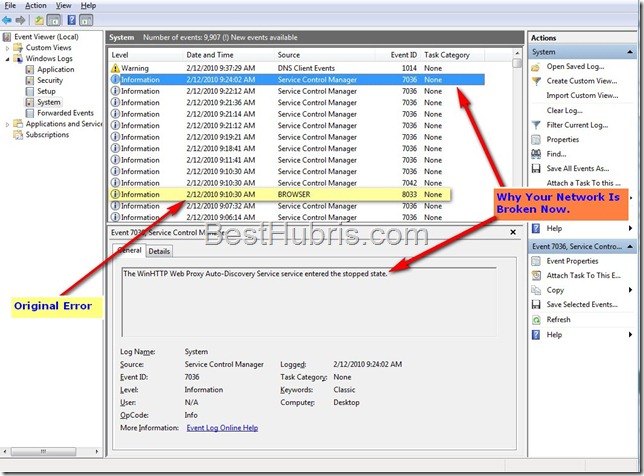
wireless-network-error-browser-election-disconnect The tale tell sign of Browser Elections from NetBIOS breaking wireless network connections is a pattern of 3 system events that all occur with the same timestamp. The easiest way to find them is to look for the Source of BROWSER. That will be the first of the three events. The other two events will be the TCP/IP NetBIOS Helper service was successfully sent a stop control, followed by The TCP/IP NetBIOS Helper service has been stopped.

wireless-network-error-tcp-ip-helper-stoppedThe next events may vary depending upon how your computer is set up, but will include one indicating that the TCP/IP NetBIOS has successfully started. This is why your Windows 7 system does not know that it has lost wireless connectivity. It THINKS the link is still working and will not change the system tray icon to show a disconnected network because TCP/IP (which is what it is actually using for networking) is working normally.

Unfortunately, another service gets knocked offline during this cascade of system events that does not get restarted. The WinHTTP Proxy Auto-Discovery Service, which should be completely unnecessary for a system using legitimate networking standards, enters the stopped state and does not restart.

wireless-network-error-winhttp-dns-errors This prevents your computer, not from networking and sending packets, but rather it prevents your system of having any idea what to do with that traffic. The stink of this whole thing is that if Windows 7 wireless networking worked well enough without all of these “helper” services, none of this would be a problem for Internet connections because the DNS Servers would still be running. But, Windows 7 wireless configuration is too dumb to use DNS Servers for Internet traffic, because it worries more about local area network traffic. Without one of the LAN services there to tell Windows to send those packets to the Internet and use the real networking protocols standards, it flails about like a helpless child.

Unfortunately, the next event is the one that gets the WARNING icon and label and it says that there is a DNS problem. Oh, that isn’t a Windows issue, is it? I guess you’ll need to go waste hours of your time seeing if there is a DNS error. Even worse, if you re-enter your DNS settings or otherwise change the configuration of your wireless adapter enough to cause a full network subsystem restart the problem will go away…until the next time, because the problem was not with the DNS configuration in the first place.

Troubleshooting Windows 7 Wireless Network Connection Errors

Here is where it really starts to suck.

If you know anything about computers or networking, you will try to troubleshoot wireless connections by disconnect and reconnect to the wireless network as a way to reset the connection. That won’t work, however, because connecting and disconnecting don’t check the status of the WinHTTP Proxy service.

Running the Windows 7 troubleshooter MIGHT work, if the system decides there is enough of a problem to completely restart the networking subsystem, in which case the WinHTTP Proxy Service gets sent a restart command. While this does restart the service, and restore a functioning wireless network, it does not take any notice of the fact that the system was stopped in the first place, or what caused it to crash originally, so nothing really gets fixed.

What can you do to permanently fix these wireless connection errors?

Go into Services (in Administrator Tools) and set Computer Browser to Disabled (you have to stop it first.) Then, this idiotic vestige of Microsoft blunders past won’t try and force elections to make itself the Master Browser, and thus won’t knock itself off of the wireless network. The only downside to this solution is if your network design sucks enough, or if you have old Windows XP computers sharing files and folders on your home network, you might not be able to connect to those computers by name.

You can solve this problem by using LMHOST files or other means of name resolution.

Theoretically, if there were only Windows 7 computers on your wireless network there would be no issue, with name resolution, but, you might STILL get knocked off the network because Windows 7 refuses to assume that there are no old and busted NetBIOS computers on your network until proven otherwise, which means every time you turn on a computer, or some invisible timer goes off, some computer will try and force a browser election and break the wireless connection again.

Update: Disabling the browser service is not enough. Computers can continue to be knocked off the wireless network by responding to the browser elections of other computers, it seems.

Additionally, other services besides WinHTTP Proxy may be disrupted and cause subsequent wireless networking problems. Users should go into Services Manager and sort by startup type. Then, scan for any Automatic processes that are no longer running and restart those as well.